01
查看当前账户、进入设置View current account and enter settings
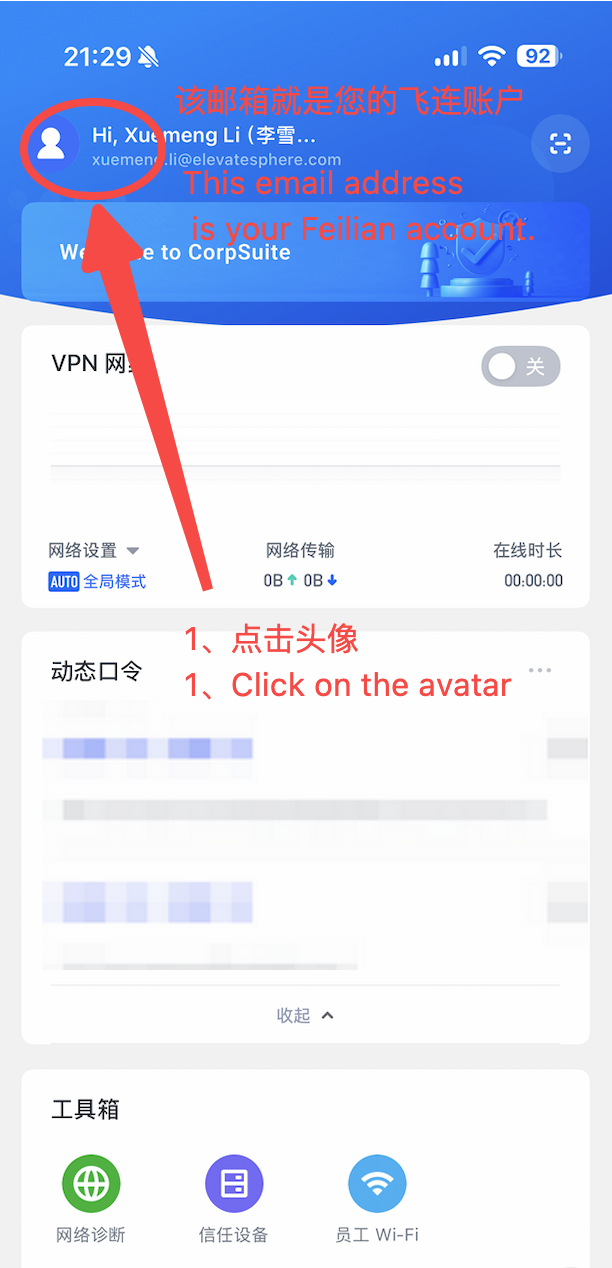
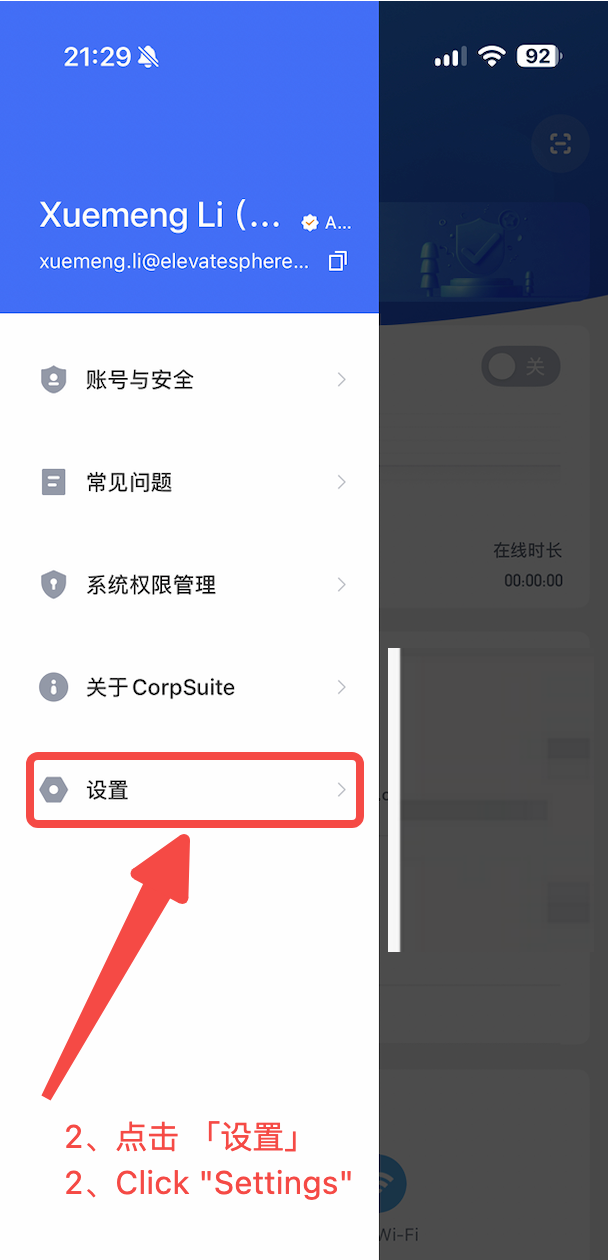
查看自己的飞连账户地址,点击飞连客户端左上角的头像,进入飞连「设置」。
Check your FeiLian account address, tap the avatar in the upper-left corner, and open “Settings”.
按照设备类型完成账户退出、企业切换、重新激活与员工 WiFi 连接。全流程约需 3–5 分钟。
查看自己的飞连账户地址,点击飞连客户端左上角的头像,进入飞连「设置」。
Check your FeiLian account address, tap the avatar in the upper-left corner, and open “Settings”.
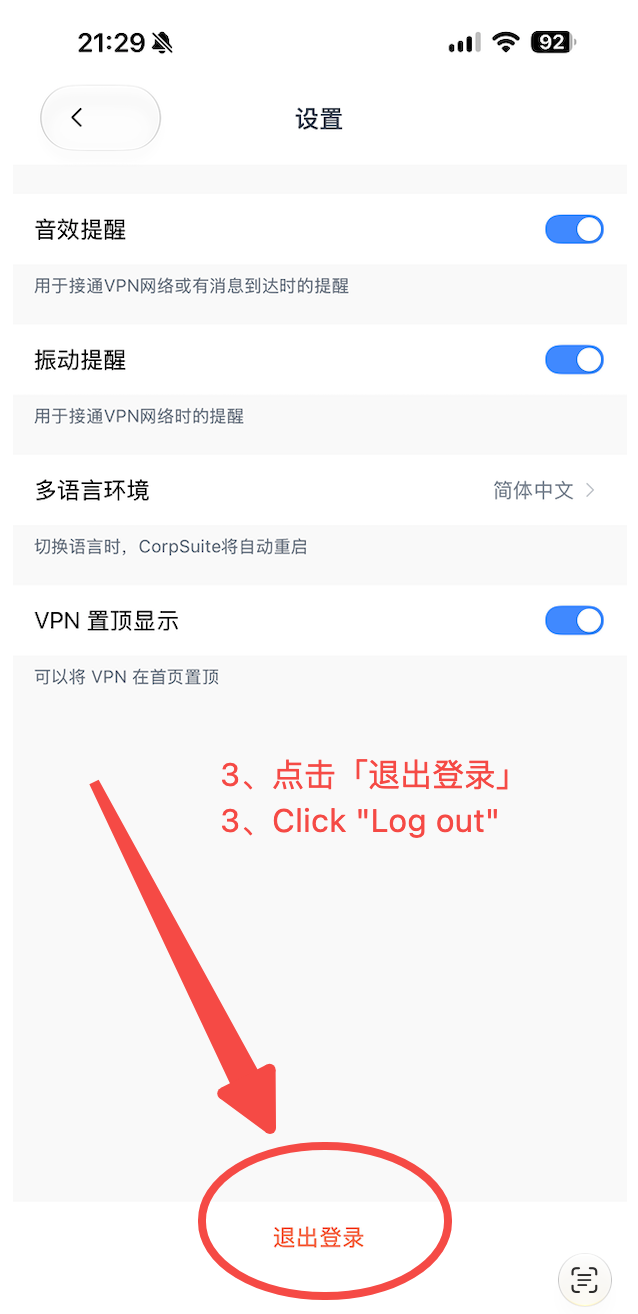
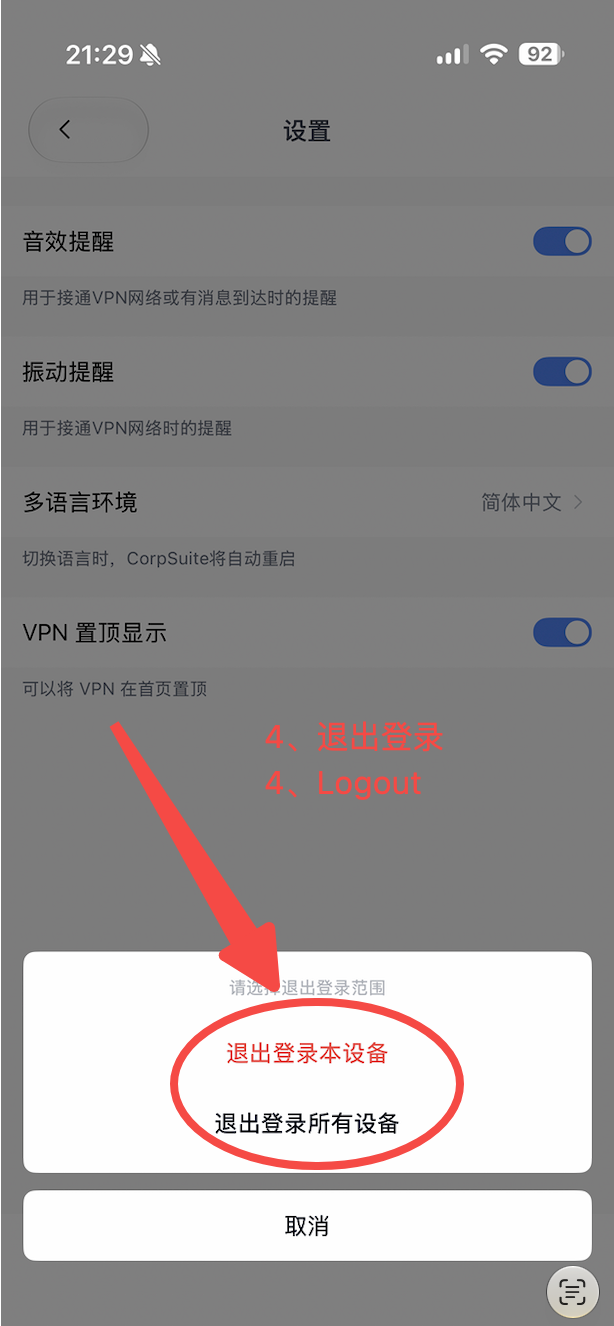
点击「退出登录」并确认退出。
Tap “Log out” and confirm.
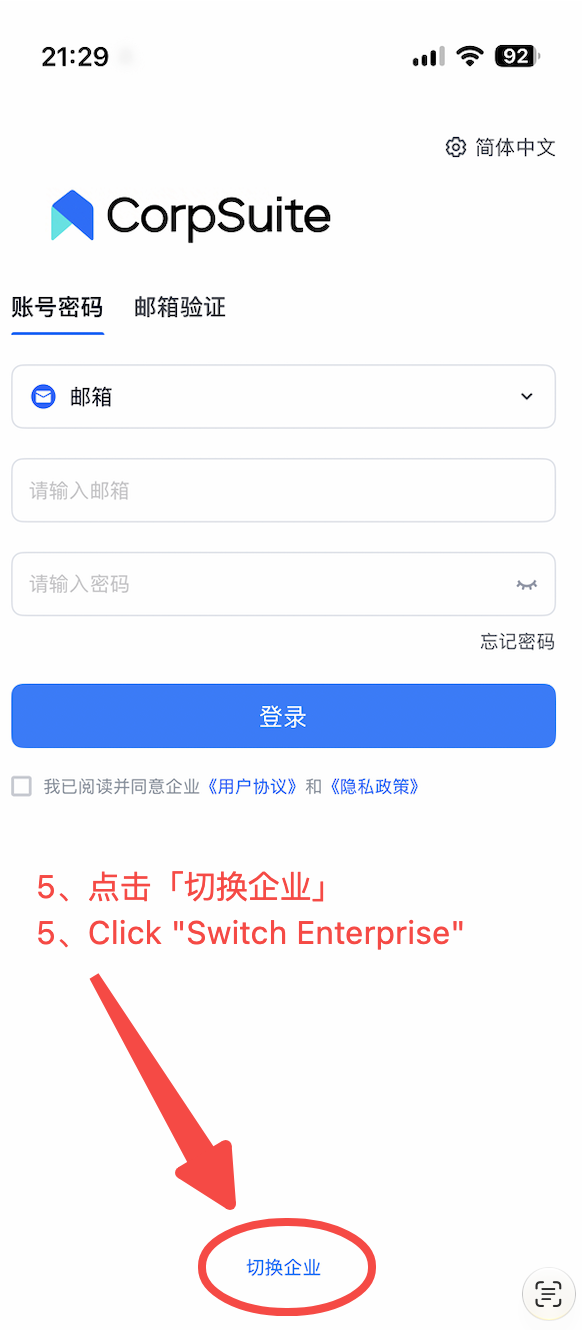
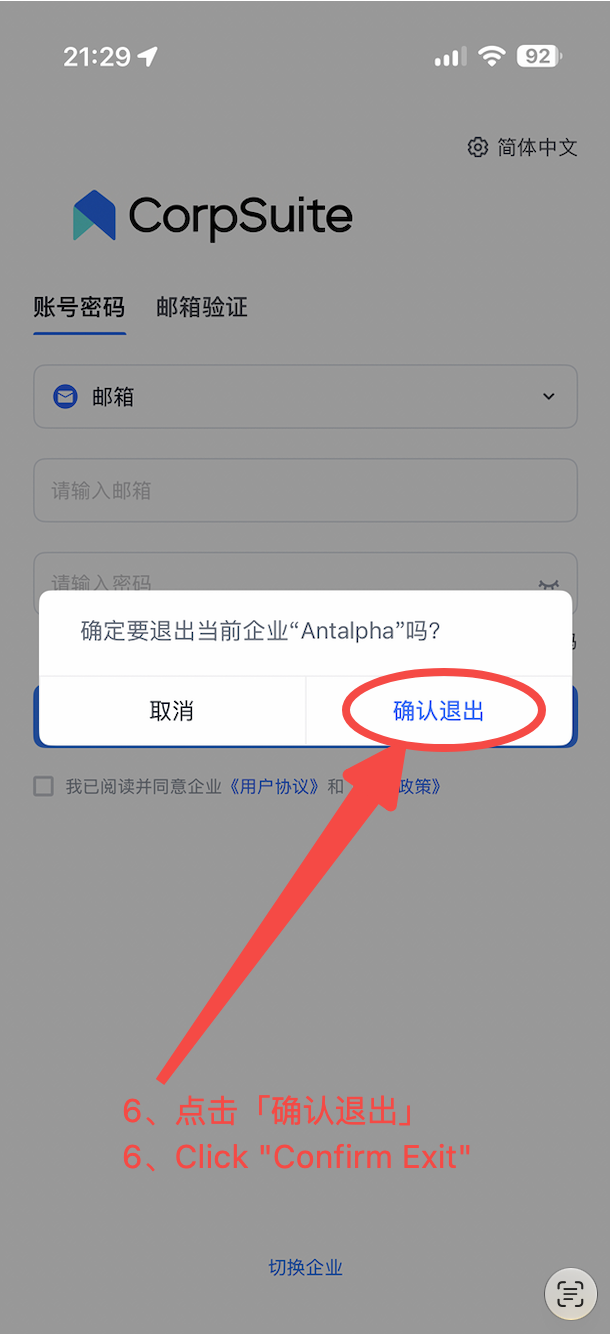
点击飞连客户端下方的「切换企业」,再点击「确认退出」。
Tap “Switch Enterprise” at the bottom of the FeiLian client, then confirm the exit.
输入企业识别码 antalpha,并确认激活配置。
Enter the Enterprise ID antalpha and confirm the activation configuration.
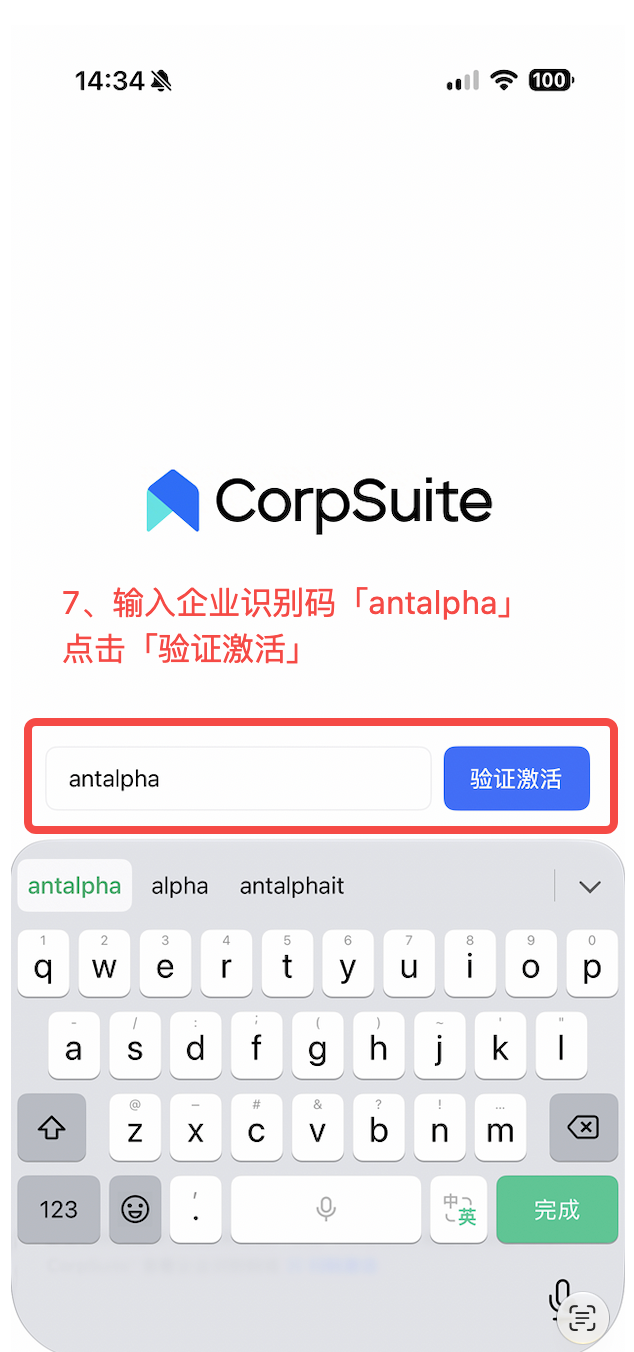
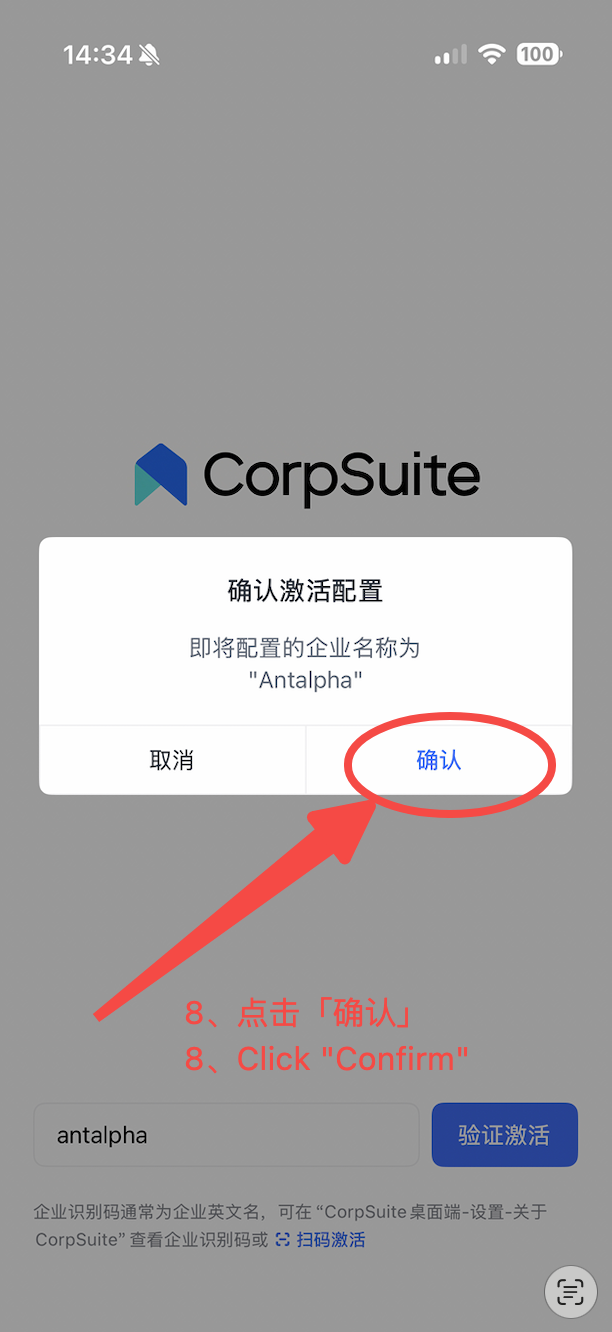
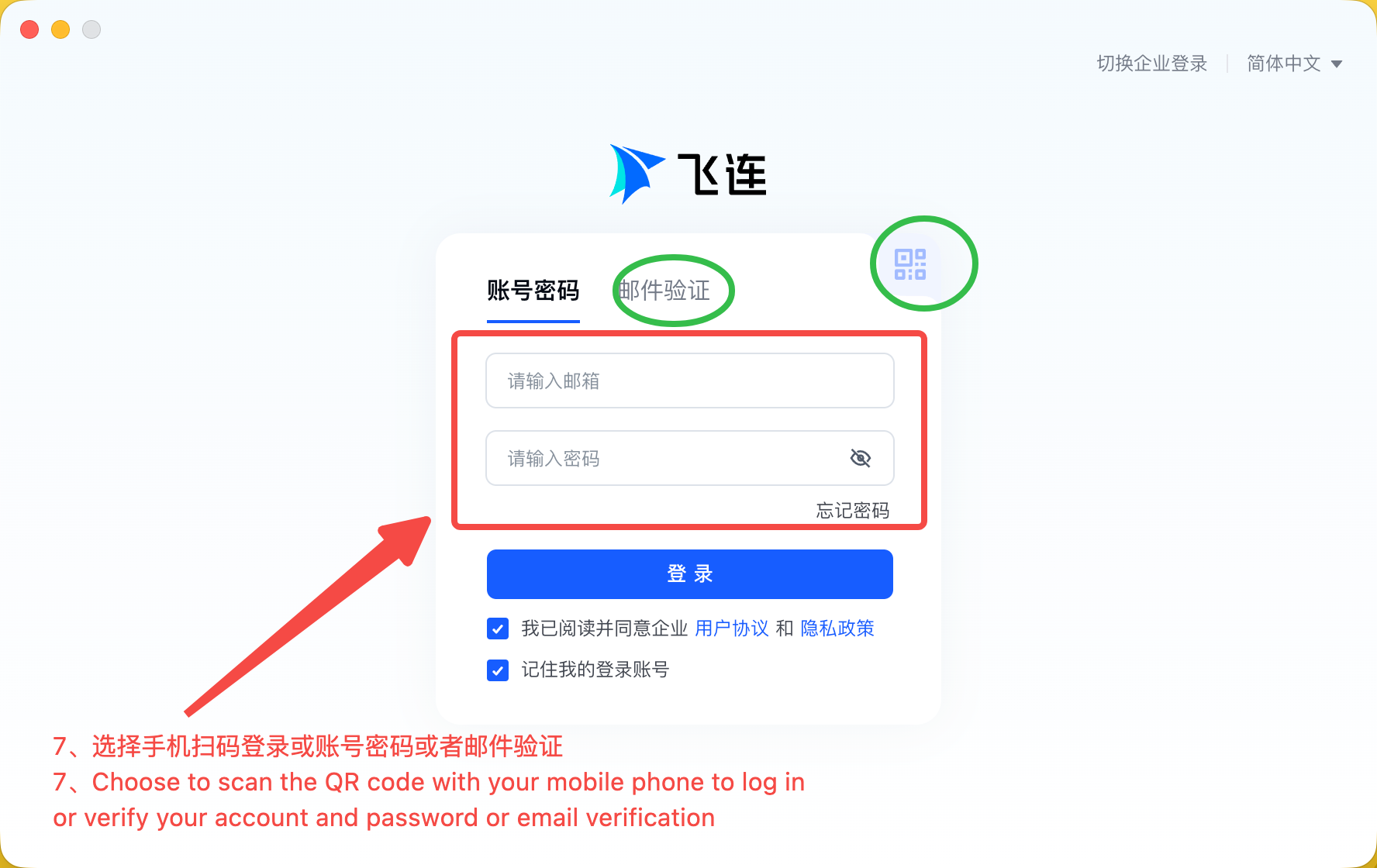
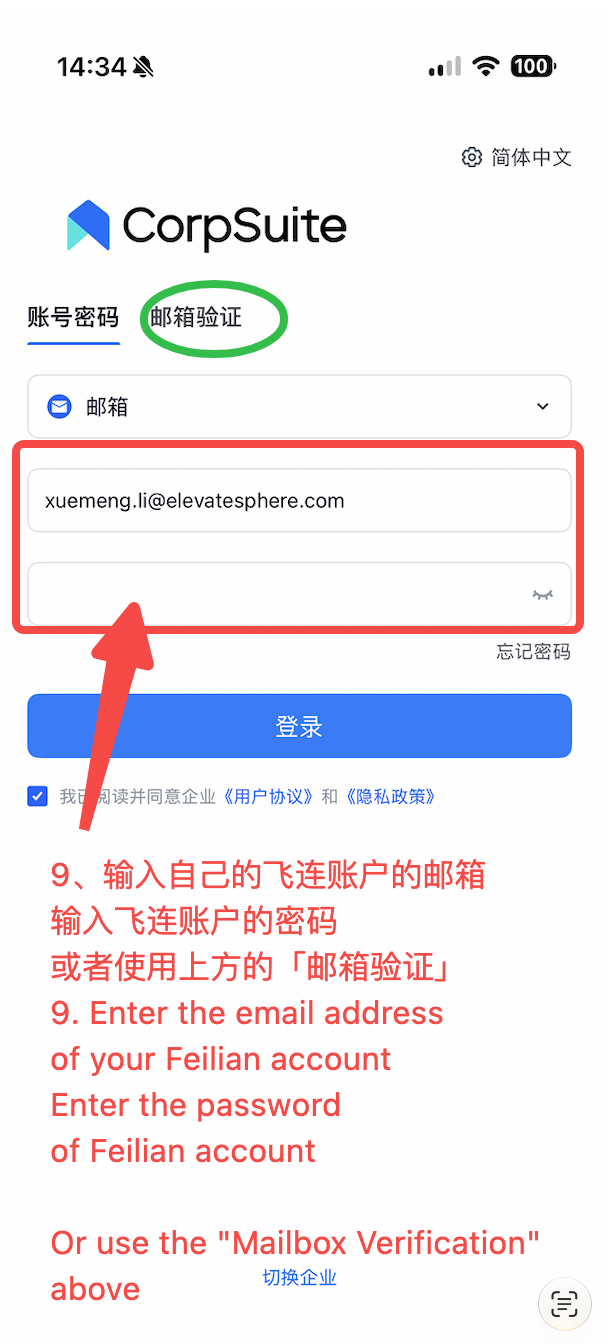
使用邮箱登录自己的飞连账户。飞连密码与邮箱密码并不相同,请使用自己设置的飞连密码。
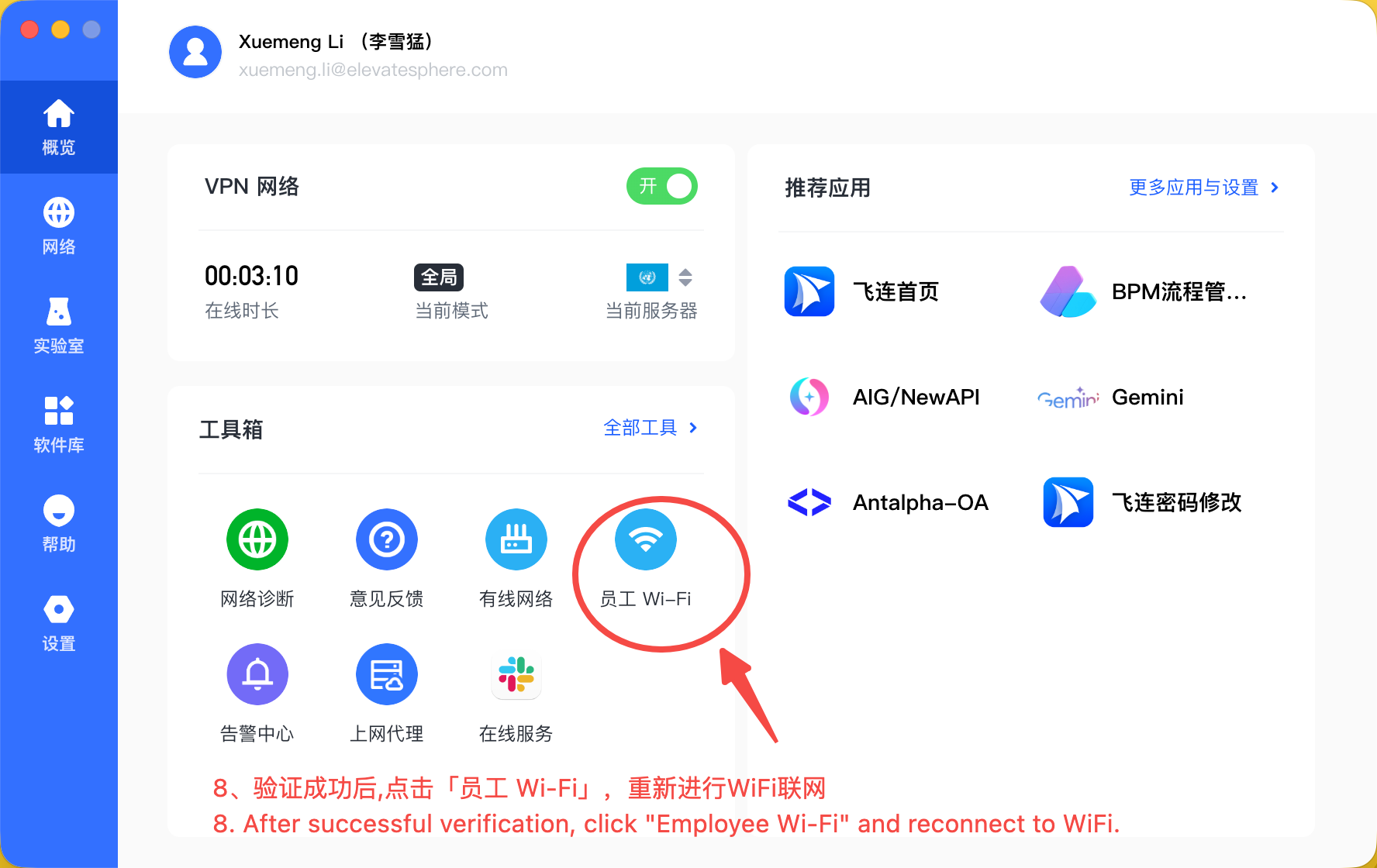
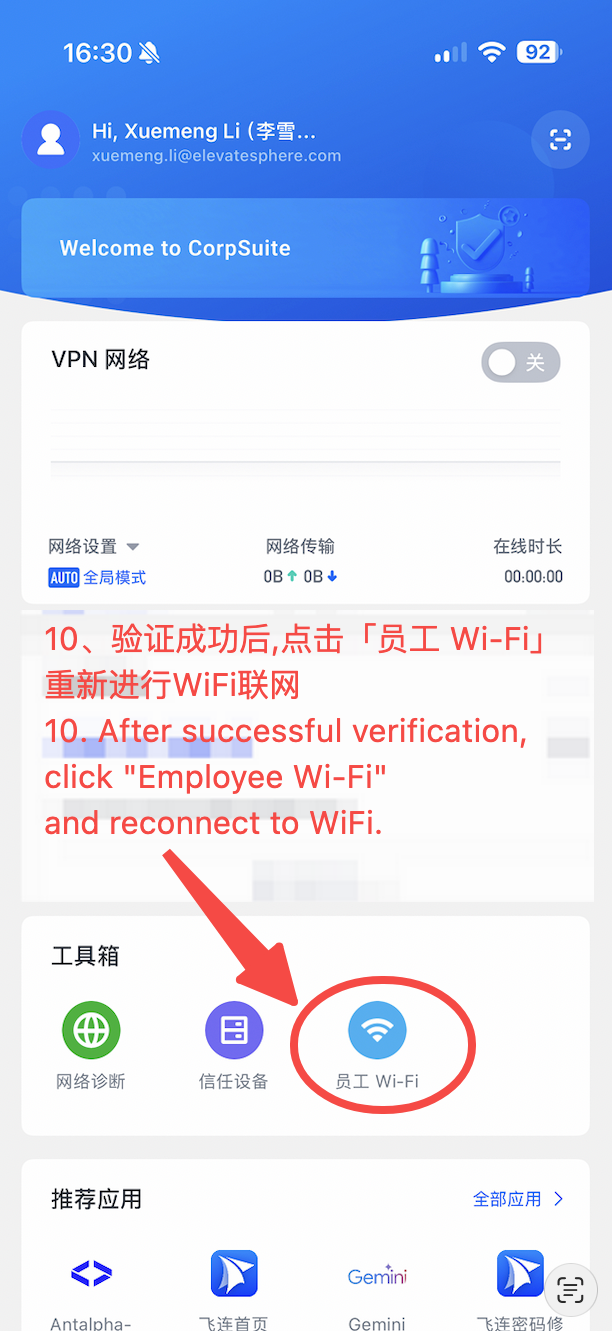
如忘记密码,可切换至「邮箱验证」入口,或联系 IT 重置密码。登录后点击「员工 WiFi」重新联网。
Sign in with your email address and the FeiLian password you created; it may differ from your email password.
If needed, use “Email Verification” or contact IT to reset it. After signing in, tap “Employee WiFi” to reconnect.
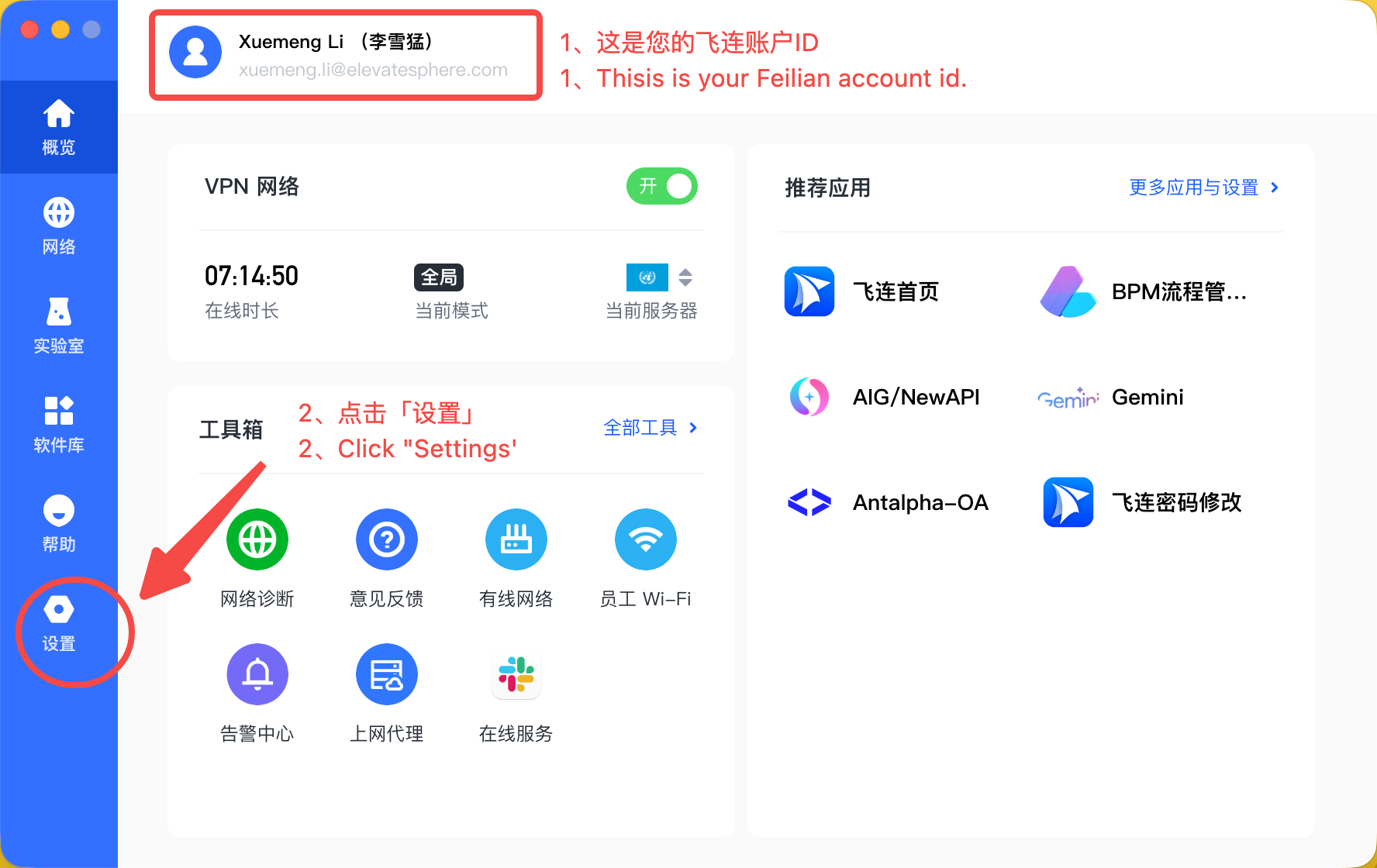
查看自己的飞连账户地址,点击客户端左下角的「设置」,进入飞连设置。
Check your FeiLian account address and click “Settings” in the lower-left corner of the client.
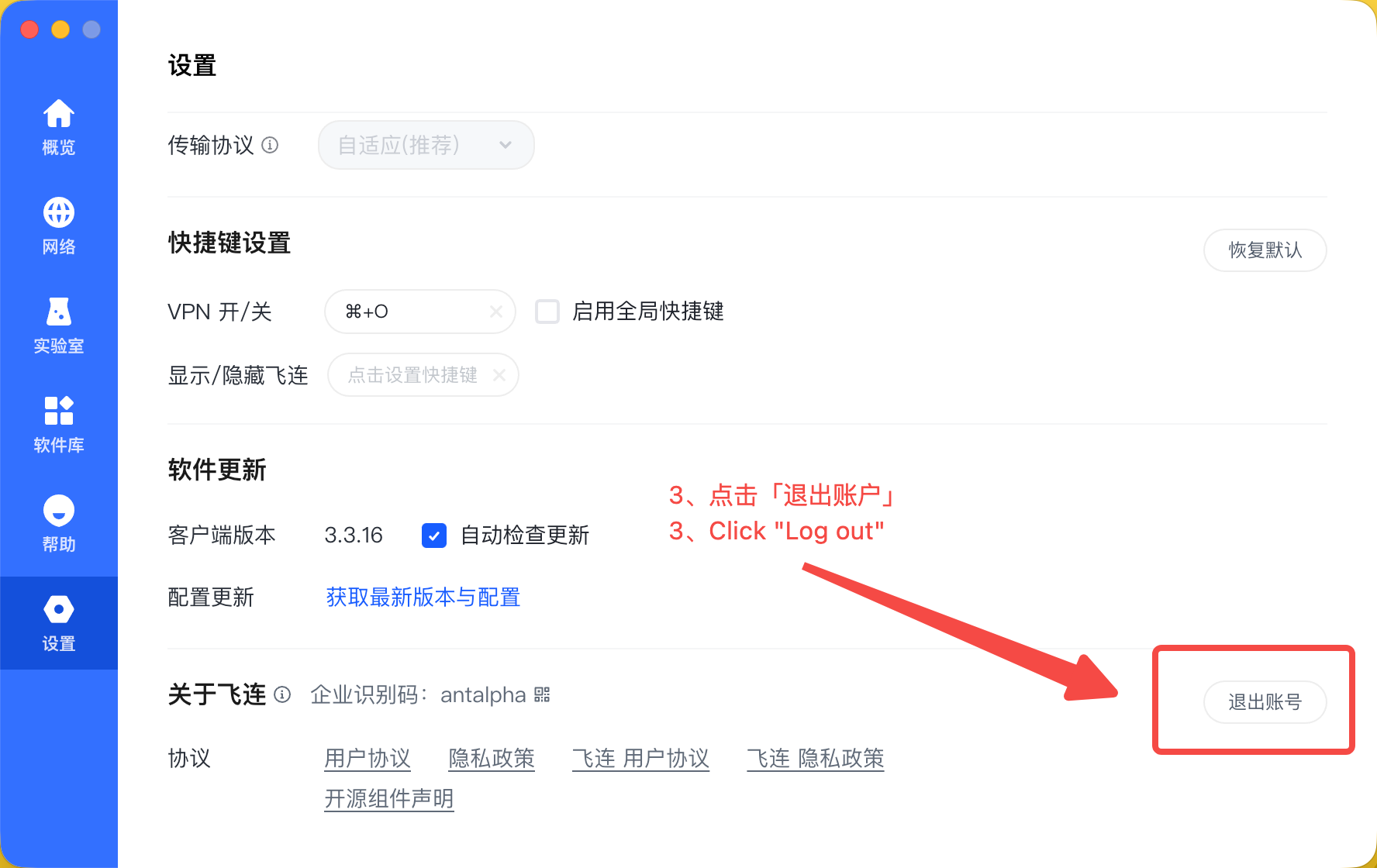
点击设置页面最下方的「退出账号」,并确认退出。
Click “Exit Account” at the bottom of the Settings page and confirm.
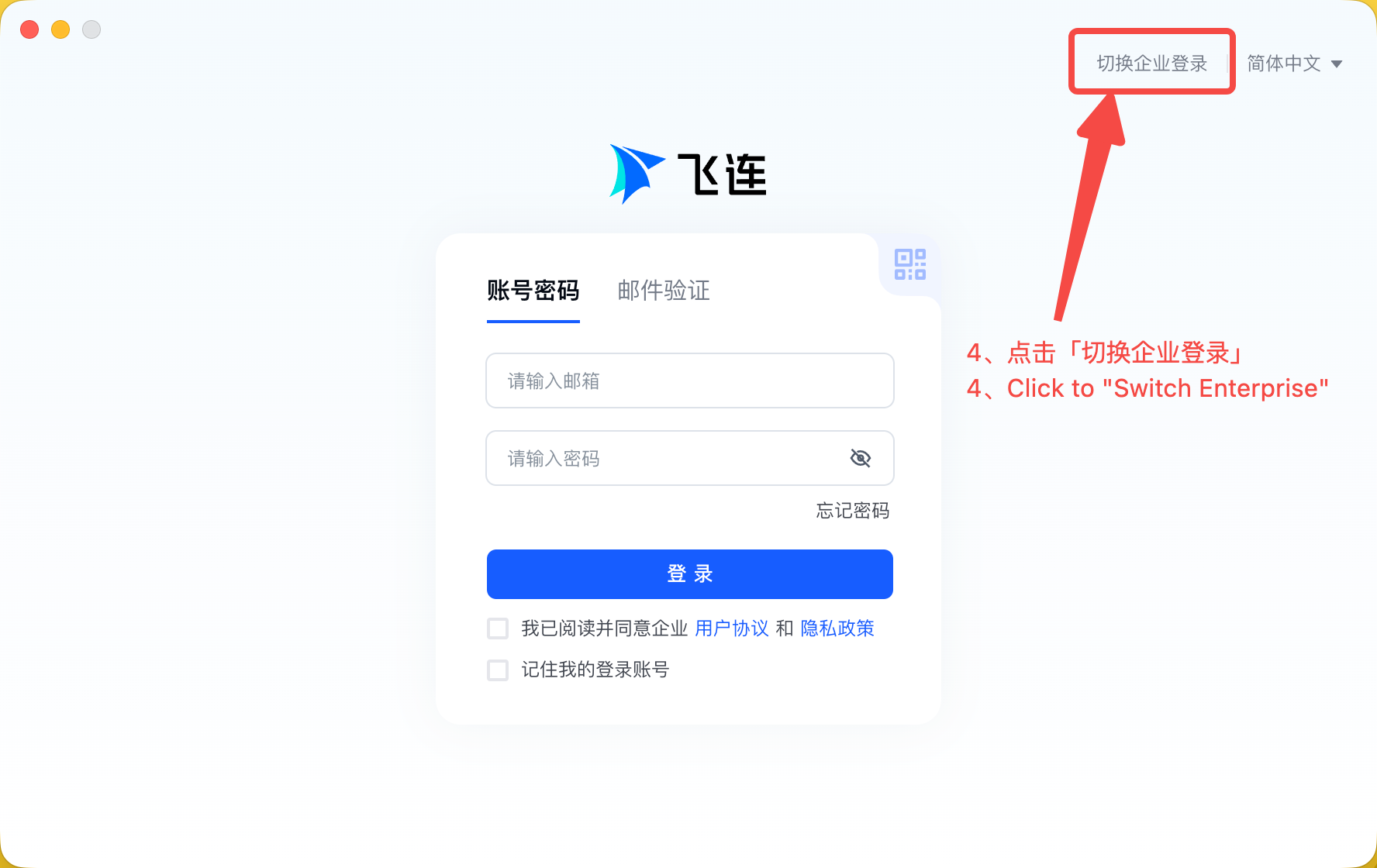
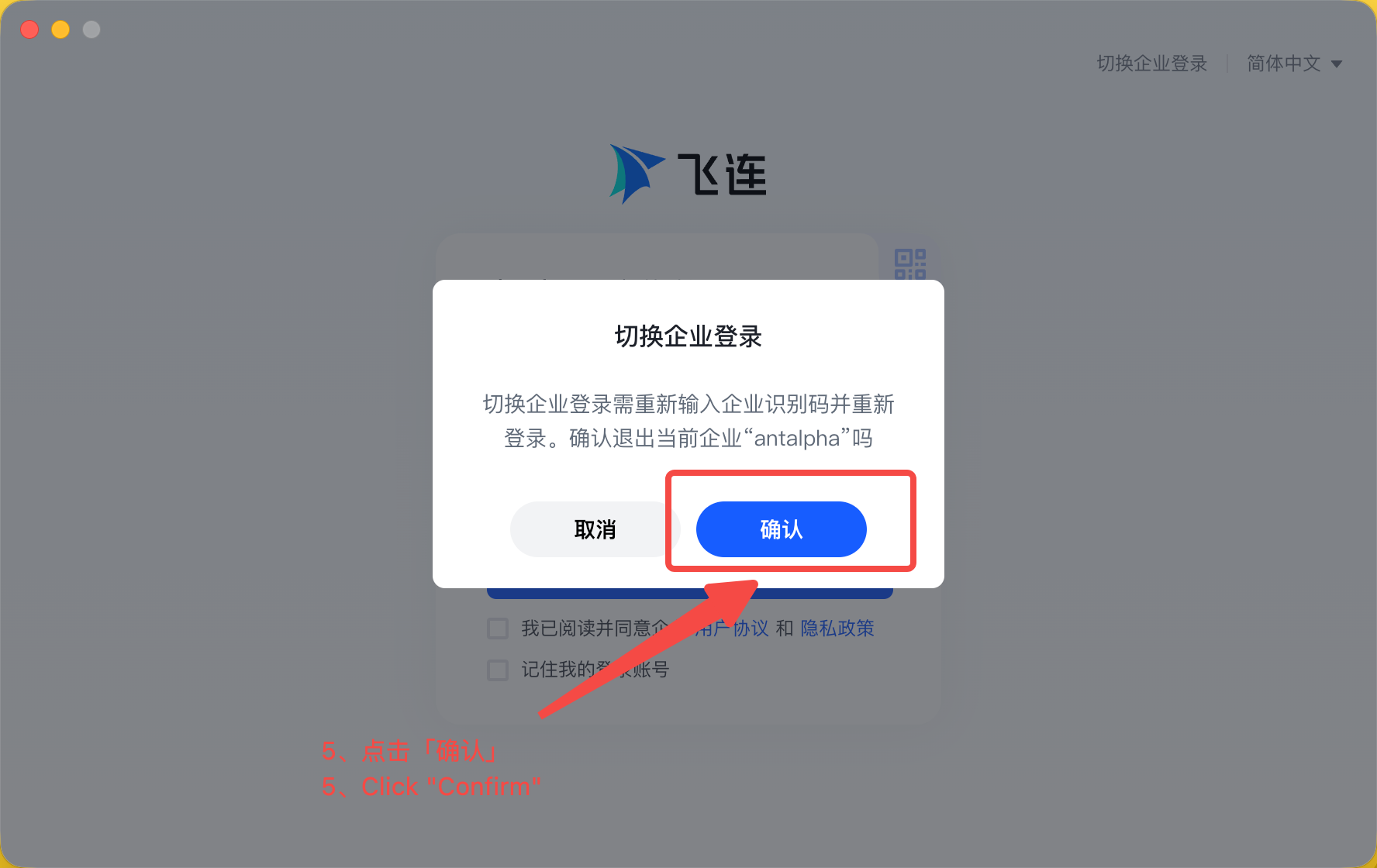
点击客户端右上角的「切换企业登录」,并确认切换。
Click “Switch Enterprise Login” in the upper-right corner of the client and confirm.
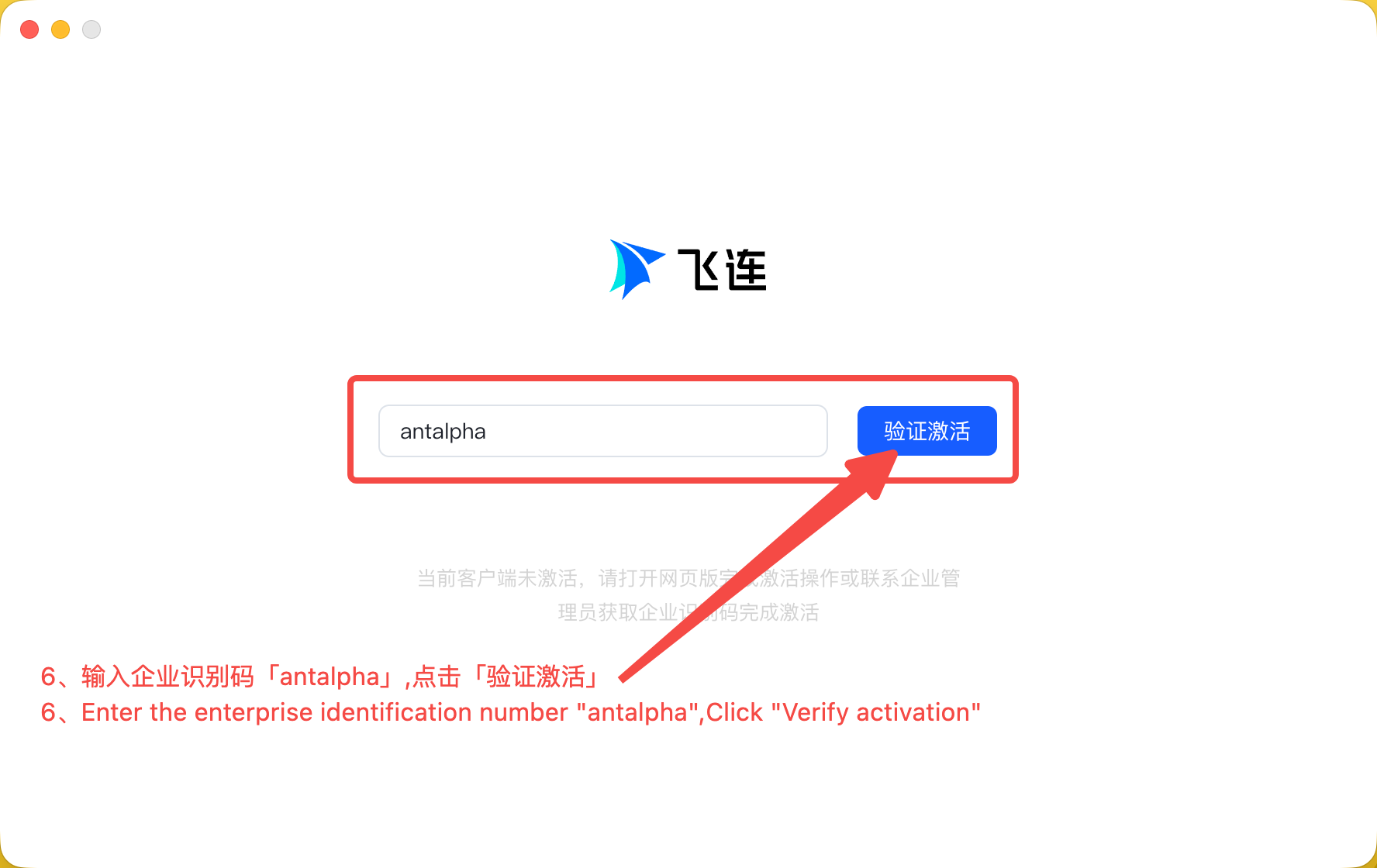
输入企业识别码 antalpha,并点击「验证激活」。
Enter the Enterprise ID antalpha and click “Verify Activation”.
可使用移动端飞连客户端扫码登录电脑端,也可使用邮箱登录。
飞连密码与邮箱密码并不相同。如忘记密码,可切换至「邮箱验证」入口,或联系 IT 重置密码。登录后点击「员工 WiFi」重新联网。
Use the mobile FeiLian client to scan the QR code, or sign in with your email address and FeiLian password.
If needed, use “Email Verification” or contact IT to reset your password. Then click “Employee WiFi” to reconnect.